Each one traceable
Create the job, collect the source texts, send them to the model, review and approve the translations, write the approved text into the Shopware translations. You can stop between every step.
Choose the scope, set the languages, have it translated - and review every text before applying. With a glossary for fixed terms, a progress display for pausing and resuming, and a choice of four AI providers using your own access.
A short tour, recorded right in the Shopware admin and the shop.
A job defines what gets translated: scope, fields, source language, target languages, provider and model. From there it runs in five traceable steps - collect, translate, review, approve, apply. Nothing reaches the shop unchecked.
Create the job, collect the source texts, send them to the model, review and approve the translations, write the approved text into the Shopware translations. You can stop between every step.
Translated text first exists as a draft. You see source and translation side by side, can correct it and then approve. Only applying writes to the shop.
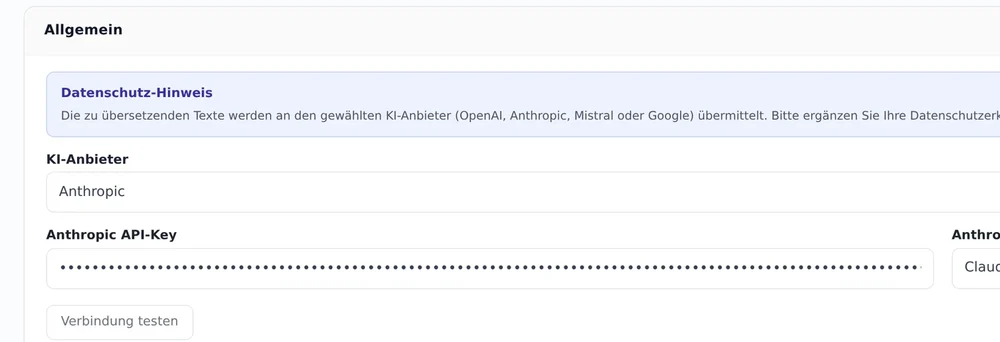
OpenAI, Anthropic, Mistral or Google Gemini, each with your own API key. You settle the cost directly with the provider; nothing is routed through our servers.
Brand names, technical terms and fixed phrases can be stored in the glossary. They are passed to the model so they stay consistent across every language.
Source texts are identified by a checksum. Unchanged text is not sent again - that saves cost and keeps already reviewed translations stable.
Manually started runs are processed in short segments in the admin and need no running message consumer. Only scheduled runs use the queue, because they have to work without an open admin.
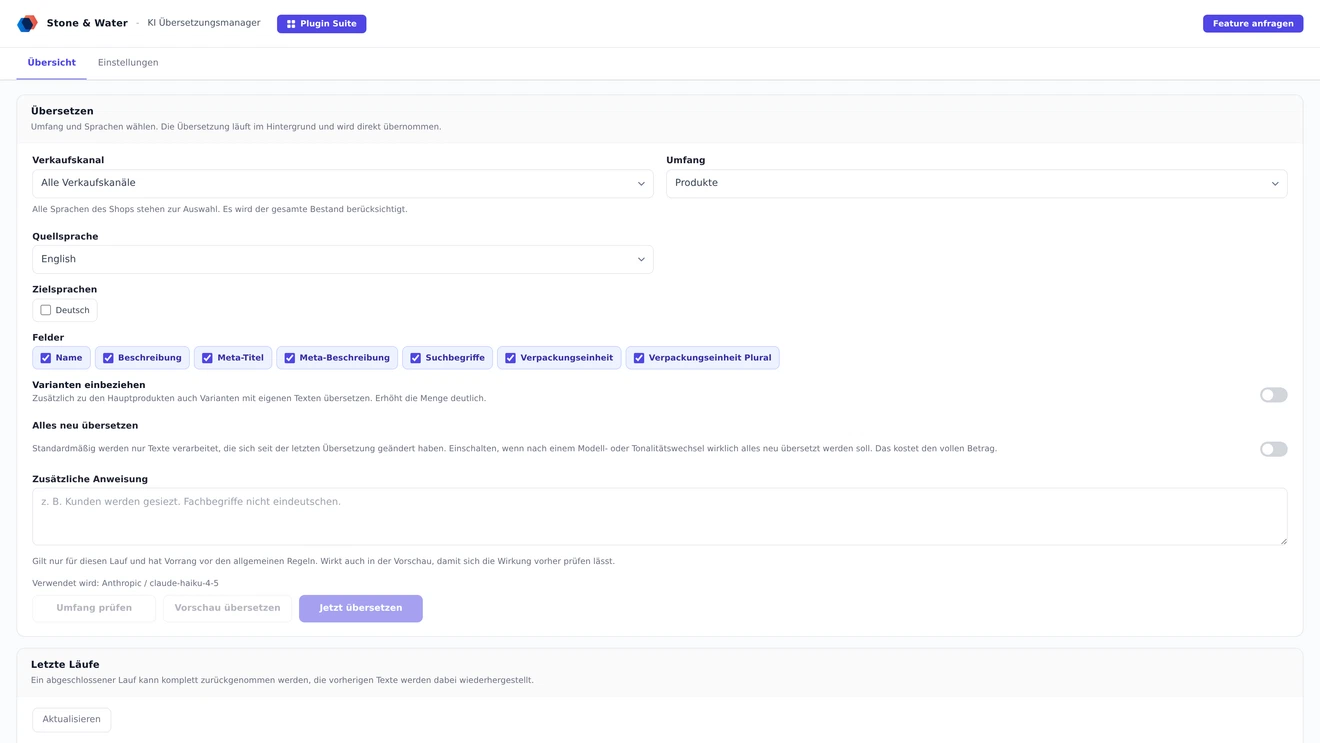
A second language channel rarely fails on intent but on the text. With thousands of articles, manual work is not an option, and an agency bills per word.
Instead of translation projects running for months, a complete catalogue in another language comes together in manageable time - and you keep control over every text.
When articles are added or texts change, the next run covers only those. The rest stays untouched.
If you look after several channels or clients, you can define languages and stock per channel without building a separate process for each shop.
The channel comes first because it determines which languages and which stock are available at all. Everything else builds on that.
Sales channel, stock and the fields to translate can each be set individually. That keeps a run manageable instead of moving the whole catalogue at once.
A window shows the percentage, processed out of total entries and the remaining count. The list of runs is not reloaded continuously meanwhile, so the view does not jump.
A run can be cancelled at any time. What has been achieved stays and can be continued later via "Resume" - including runs that got stuck in an earlier version.
Recurring runs can be scheduled. They use the message queue because they have to work without an open admin.
Error messages are phrased in understandable language, in German and English. Instead of a technical raw response it states that the API key was rejected, for example, and where to check it.
Missing or rejected key, rate limit reached, provider fault, provider unreachable, unreadable model response and a mismatching number of returned texts are all named explicitly.
Dedicated entities for jobs, items and glossary. Writing happens exclusively into the Shopware translation tables.
You store your own API key for OpenAI, Anthropic, Mistral or Google Gemini. Nothing is routed through our servers, and the connection can be tested before the first run.
Extensive jobs are processed through the message queue. Manual runs work without it, so installations with no consumer configured can still use the plugin.
The check is designed strictly. If the licence server is unreachable, a grace period applies so an outage on our side does not stop your operation.
All settings live in the admin module under the Plugin Suite. There is deliberately no config.xml, so nothing has to be maintained in two places.
Workflow, cost and translation quality.
You create a job defining scope, fields, source and target languages. From there it runs in five steps: collect, translate, review, approve, apply. Only applying writes into the Shopware translation tables.
No. Translated text first exists as a draft. You see source and translation side by side, can correct it and then approve. Only approved items are applied.
OpenAI, Anthropic, Mistral or Google Gemini, each with your own API key. You settle the translation cost directly with the provider; nothing is routed through our servers.
Buying directly costs 9.99 euros net per month or 101.90 euros net per year. On top come your AI provider costs, which depend on text volume. All prices are net and exclude VAT.
That is what the glossary is for. You store terms that should stay unchanged or be translated in a particular way. They are passed to the model with every request, keeping the language consistent across all runs.
No. Source texts are identified by a checksum. Unchanged text is not sent to the model again, which saves cost and keeps already reviewed translations stable.
Two routes, the same feature set - pick whichever suits your setup.
All prices net, plus VAT.
Download the free Plugin Suite and upload it in the admin, no SSH needed. It installs and updates the plugin with one click. You buy the licence directly from us, with an invoice from us and support straight from the developer.
The plugin will be listed in the official Shopware Community Store. Installation and automatic updates then run through the plugin manager in the backend, billing through your Shopware account. We will link it here as soon as it is available.